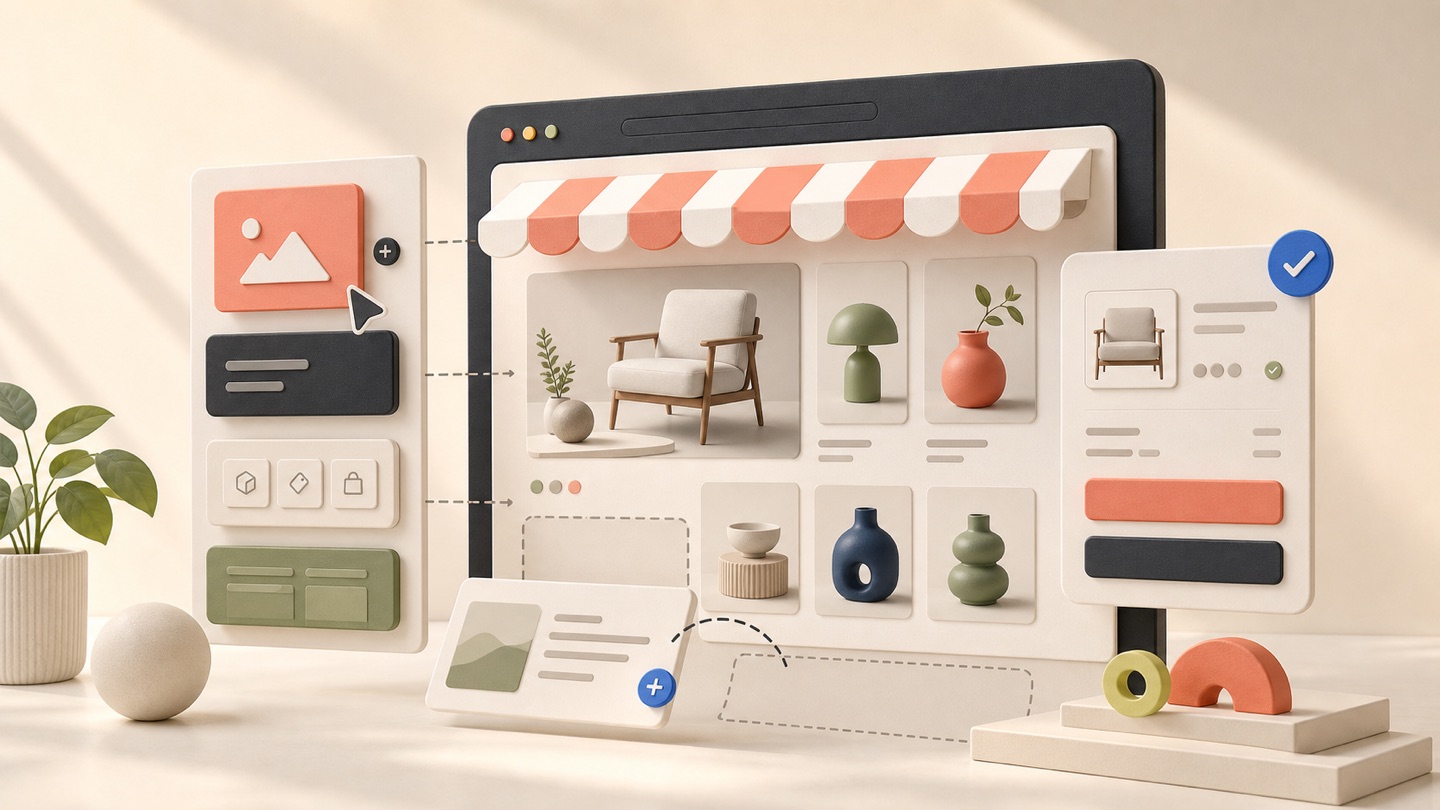
How to Design and Publish a Responsive Website
Build pages block by block, make deliberate responsive decisions, and publish without exposing unfinished work.
Think in sections before styling details
Pagecart pages are assembled from blocks such as heroes, text areas, images, product grids, FAQs, forms, and newsletters. Start by deciding the page’s section order. A strong hierarchy matters more than decorative polish.
For most pages, introduce the outcome first, provide evidence or useful detail next, answer objections, and finish with a clear action.
Add and arrange blocks
- 1Open Pages and choose the site version you intend to edit.
- 2Open a page and find the required block in the Components panel.
- 3Drag the block into position or use an available Add block here control.
- 4Select the block on the canvas and edit its content and presentation in Properties.
- 5Use drag handles to reorder sections until the page reads clearly from top to bottom.
Design for all three preview sizes
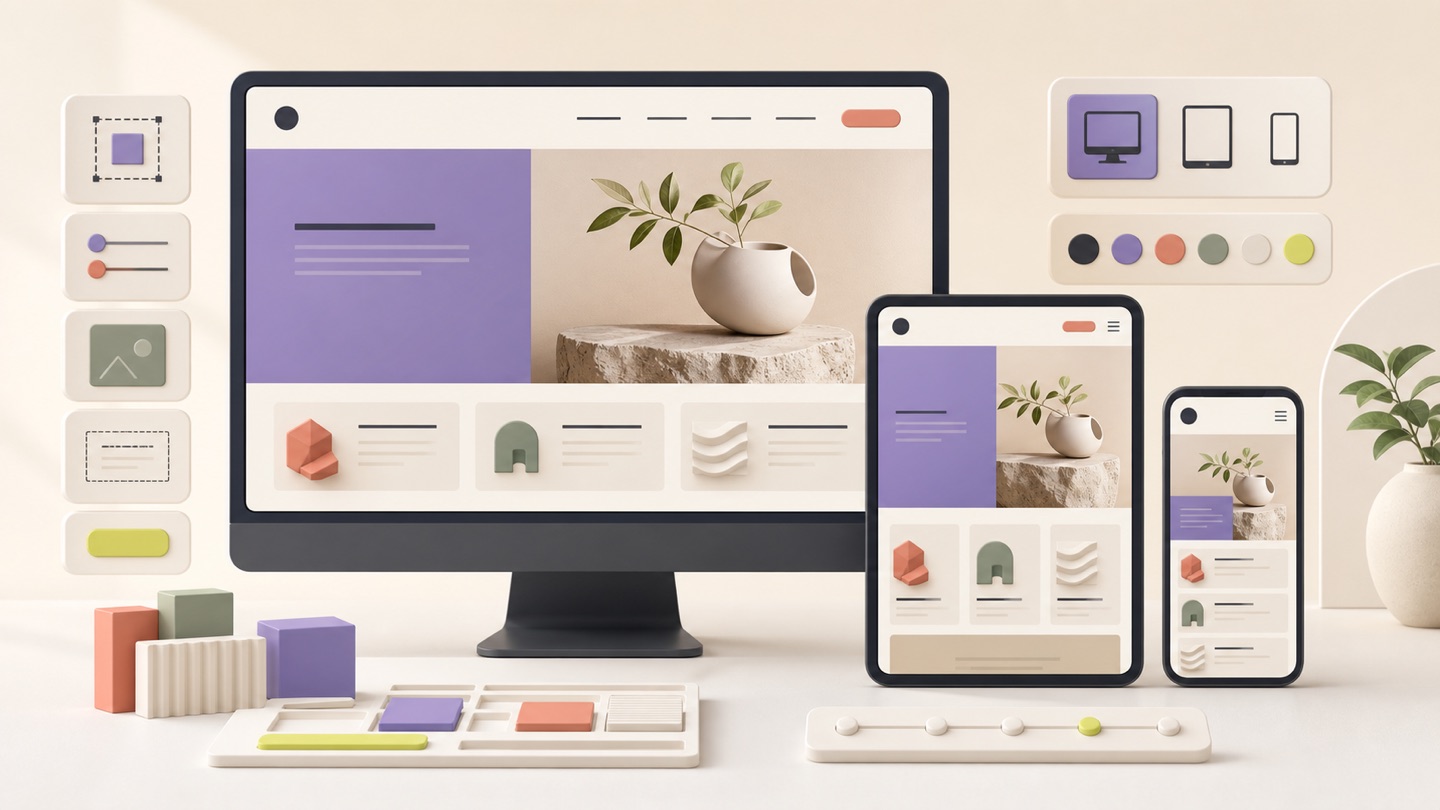
Responsive design is not simply shrinking a desktop page. Use Pagecart’s Desktop, Tablet, and Mobile controls to check how the hierarchy behaves at each size.
- Keep headings readable without awkward single-word lines.
- Make sure multi-column content stacks in a sensible order.
- Check that important images retain their subject and do not crop badly.
- Give buttons enough width and spacing to work as touch targets.
- Remove unnecessary spacing that pushes useful content too far down on mobile.
- Test navigation, forms, product choices, and footer links.
Use drafts as a safety boundary
Changes on the canvas remain local until you save the draft. Saving stores the editor state without changing the public storefront, so you can work in meaningful milestones and return later.
Undo and redo are useful while editing, but saved drafts and page-version history are the safer checkpoints for substantial work.
Preview before publishing
- 1Save the latest draft.
- 2Open Preview and read the page as a visitor rather than an editor.
- 3Verify links, image alternative text, forms, products, and any CMS content used by the page.
- 4Publish dependent CMS records before publishing a page that displays them.
- 5Select Publish and wait for confirmation before checking the public URL.
Run a real-device check
Browser previews catch most layout issues, but the final check should happen on the live site using at least one real phone and one desktop browser. Test the main action from beginning to end and confirm the page remains understandable on a slower connection.