How to Build an Online Store Without Coding
Turn an idea into a working storefront with a clear, no-code launch sequence—from choosing a template to testing checkout.
Start with the business, not the canvas
Before choosing colours or rearranging sections, write down what you sell, who it is for, and the single action you want a visitor to take. That action might be buying a product, requesting a quote, booking a service, or joining a mailing list.
A focused store is easier to design. Your home page can introduce the promise, show the strongest products or services, answer common objections, and lead visitors toward one clear next step.
Set up your Pagecart store
- 1Create your Pagecart account and complete onboarding with an accurate store name and business details.
- 2Open Settings → Brand and add your logo, colours, contact details, and public business identity.
- 3Open Templates and choose the starter design closest to the structure you need.
- 4Stage the template, review its pages, and activate the intended theme when you are ready to use it.
Add products people can understand
A strong product page answers practical buying questions without making customers hunt for information. Use a clear title, useful photographs, a concise description, accurate variants, price, and inventory.
- Create each product under Products and mark it active when it is ready.
- Add variants for choices such as size, colour, format, or material.
- Use categories or product selections to control what appears in product blocks.
- Remember that changing text inside a page block does not change the authoritative checkout price.
Build the customer journey with blocks
- 1Open Pages and select the site version you are editing.
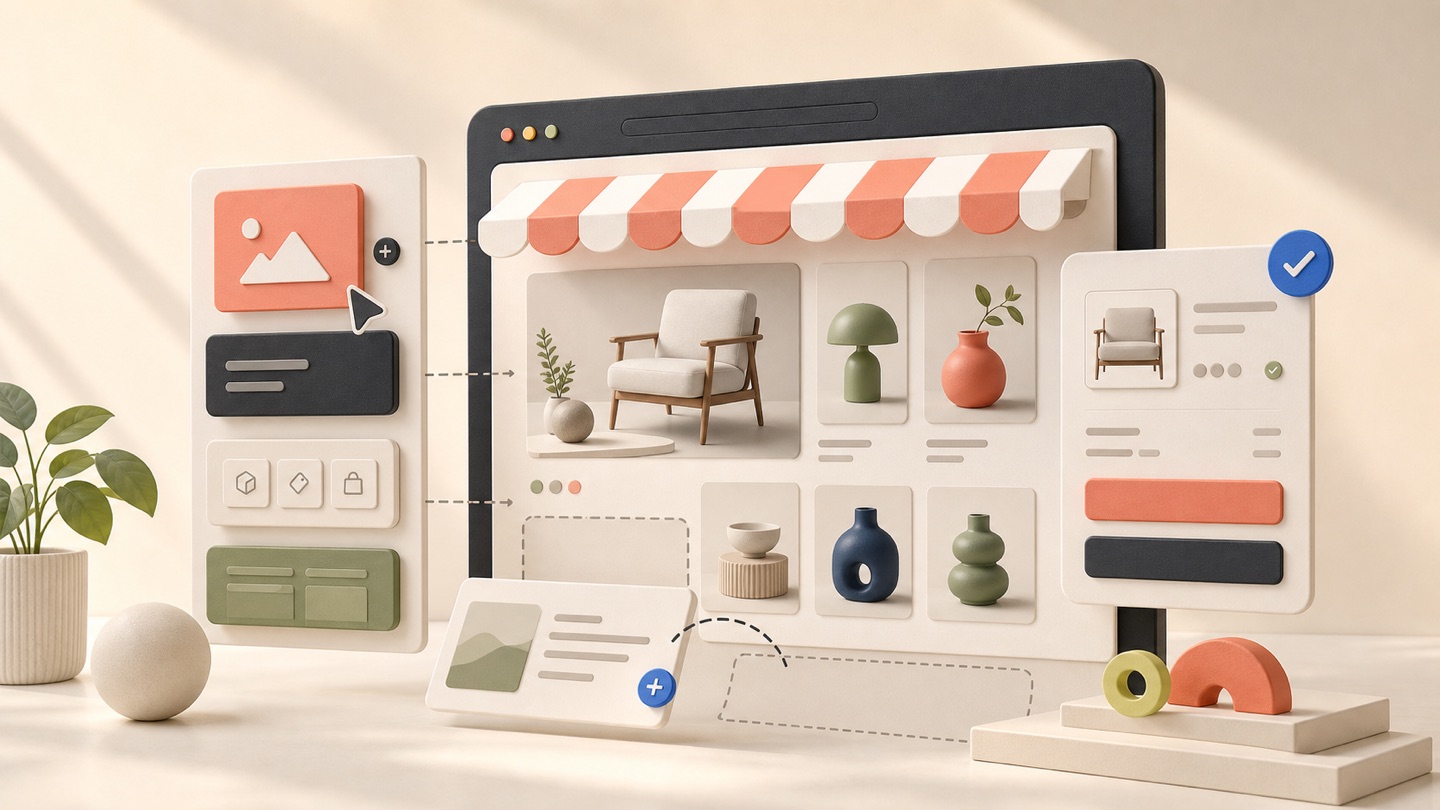
- 2Open the home page and add blocks from the Components panel.
- 3Use a clear hero, product collection, supporting content, trust information, and one primary call to action.
- 4Configure shared navigation and footer content under Site layout and Menus.
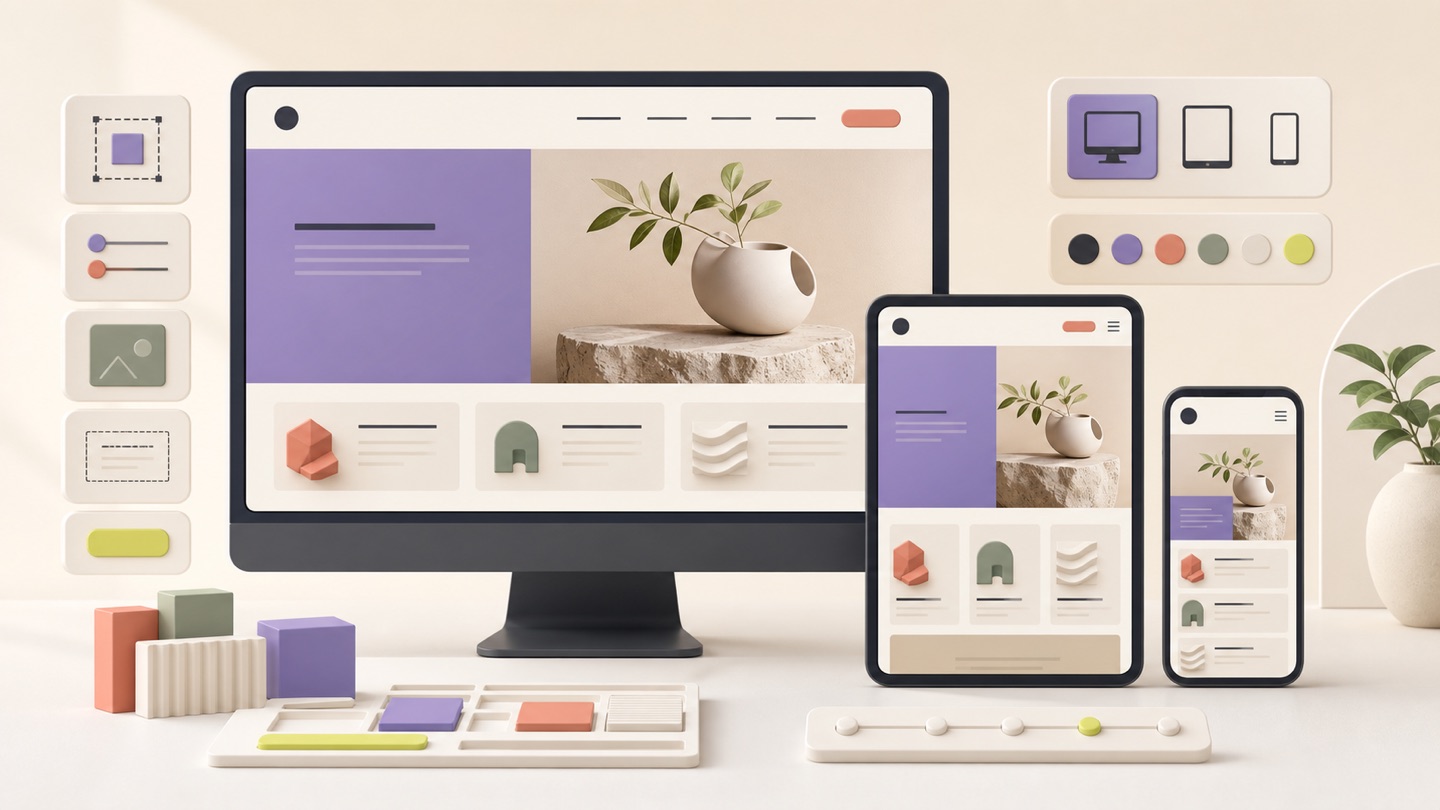
- 5Preview every important page at desktop, tablet, and mobile sizes.
Connect payments only when you need checkout
Pagecart uses Stripe Connect for payment onboarding. Open Settings → Payments, complete Stripe’s hosted business and payout steps, then return to Pagecart and confirm the connection status.
A portfolio, service, church, property, restaurant, or lead-generation website can launch without online payments. For a commerce store, also verify active products, valid prices, available inventory, and a usable checkout flow.
Save, publish, and test
- 1Save the latest page draft.
- 2Preview the page and test every important link and form.
- 3Publish the page and wait for the success confirmation.
- 4Test the live storefront on a real phone and desktop browser.
- 5Place a complete test order before sending customers to the store.